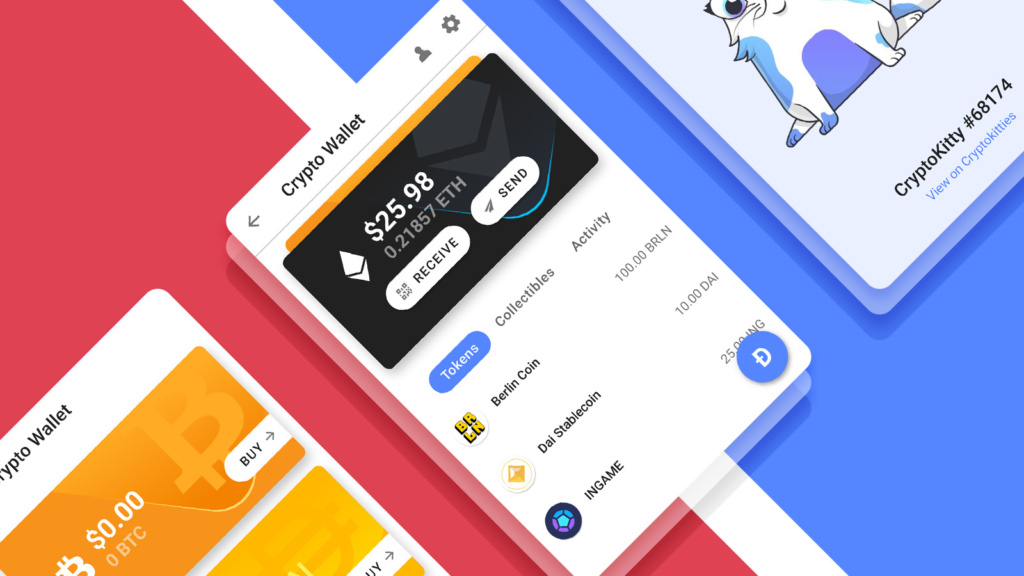
After playing several winning games, you should have claimable tokens.
Connect VIS Coins to MetaMask
You can claim tokens by connecting the VIS coin to MetaMask.
- Go to https://coinmarketcap.com/currencies/vigorus/
- Copy the Polygon Address where it says Contracts
- Then, click your MetaMask extension to click Import Tokens
- Paste the Token Contract Address into the text box that says Address
- Click on Add Custom Token to confirm
- Click on Import Tokens
🎉 You now have the VIS Coin Token in your MetaMask 🎉
Claiming Coins in Pegaxy Polygon Chain
⚠️ Claimable VIS coins will be available 15 days after your first race, so you will not be able to claim again until 15 days has passed again.
⚠️ You’ll need to have a small amount of Matic coins on the Polygon Network to process VIS transactions. If you have zero Matic coins, you can get FREE Matic at https://matic.supply. You’ll get FREE Matic by doing a CAPTCHA and connecting your MetaMask Wallet by continuously confirming.
- In Pegaxy, go to My Assets then My Profit to see your claimable tokens. Click on Claim.
- Click on Continue and I Understand when the prompts opens up. After a few minutes, your VIS coins should appear on your wallet.
- Go to Kyberswap.com to Swap VIS coins to USDT on the Polygon Chain. Click Swap on the website to start swapping.
- In the From section, select VIS as the currency. Then enter the amount you want
- In the To section, select USDT as the currency
- Click on Approve VIS.
- The MetaMask Wallet should open up. Click on Confirm. Then, wait for several moments for approval.
- Once approved, Click on Confirm Swap on the prompt and Click on Confirm when the MetaMask Wallet opens up again.
- ⚠️ If you haven’t done so, Click where it says Add USDT To MetaMask so you can make it into a visible token.
🎉 Your USDT should appear in your MetaMask Wallet within a few moments. 🎉
Swapping USDT on Polygon Chain to Binance Smart Chain
Add Binance Smart Chain to your MetaMask Wallet
- Add Binance Smart Chain to your MetaMask Wallet by Click on the MetaMask extension and Clicking on Settings.
- Go to Network and Type in these Settings EXACTLY.
- Network Name: Smart Chain
- New RPC URL: https://bsc-dataseed.binance.org/
- Chain ID: 56
- Currency Symbol: BNB
- Block Explorer URL: https://bscscan.com
🎉 You have added the Binance Smart Chain to your MetaMask 🎉
Buying BNB for Swaps
- ⚠️ You’ll need a small amount of Binance Coin to process Swaps. Each transaction costs $1.50. For USA Players, go to Crypto.com to make a account and purchase BNB. It will allow you to withdraw and use your money on the Binance Smart Chain.
- Download the Crypto.com App
- Under the Accounts tab, Select your Crypto Wallet
- Click on Buy and Select Binance Coin (BNB)
- Buy BNB. $5-$10 should be enough to fund several transactions
- Then you can send BNB to the MetaMask Wallet. Under the Accounts tab, Select on Transfer
- Select on Withdraw, then External Wallet
- Add your MetaMask Wallet on the top right where the (plus sign) + is. Copy your MetaMask Address in the MetaMask extension and text/email the address yourself.
- Once added, be sure to Select Withdraw BNB on the BSC Network
- Input the BNB Transfer Amount that you bought for transactions and Confirm.
🎉 You have BNB to do Swaps 🎉
Swapping USDT to the Binance Smart Chain
- Go to XPOLLINATE.io to Swap Chains
- In the From section, have Polygon as Chain and USDT as Token
- In the To section, have BSC as Chain and USDT as Token
- Connect your MetaMask Wallet and click Switch!
🎉 Now your USDT is on the Binance Smart Chain 🎉
Moving Funds to Crypto.com
- To move all your funds to Crypto.com account, Click Send in your MetaMask Wallet after selecting USDT
- To find your Crypto.com BSC Address, you need to Select on Transfer in the app.
- Then, Select on Tether (USDT)
- ⚠️‼️⚠️ Select the BSC Network BEFORE copying the address. If you don’t do this then you could lose ALL OF YOUR MONEY!
- Afterwards, click on the 2 Documents icon symbol next to the address (0x12345) so that you can Copy the Address
- Then, go back to the MetaMask Wallet and Paste the BSC Address
- Input the amount of USDT you want to take out
- Click Next and Confirm
🎉 After a few minutes, your USDT should appear on your Crypto.com Wallet 🎉
Using your Funds to Buy Crypto or Withdraw to your Bank
- ⚠️ In the app, you can trade your money for other cryptocurrencies or withdraw them to your bank
- ⚠️ At this time (Jan 2022), it takes $100 minimum to withdraw to a bank account. It takes 3-5 business days to see them
- ⚠️ If you’d like to use smaller amounts, Crypto.com has a Visa Debit Card that can be used anywhere
- Select Sell under the Accounts tab
- There are 2 tabs. The Crypto Wallet tab lets you sell your money for other cryptocurrencies and the Fiat Wallet lets you Transfer your money to a bank account